
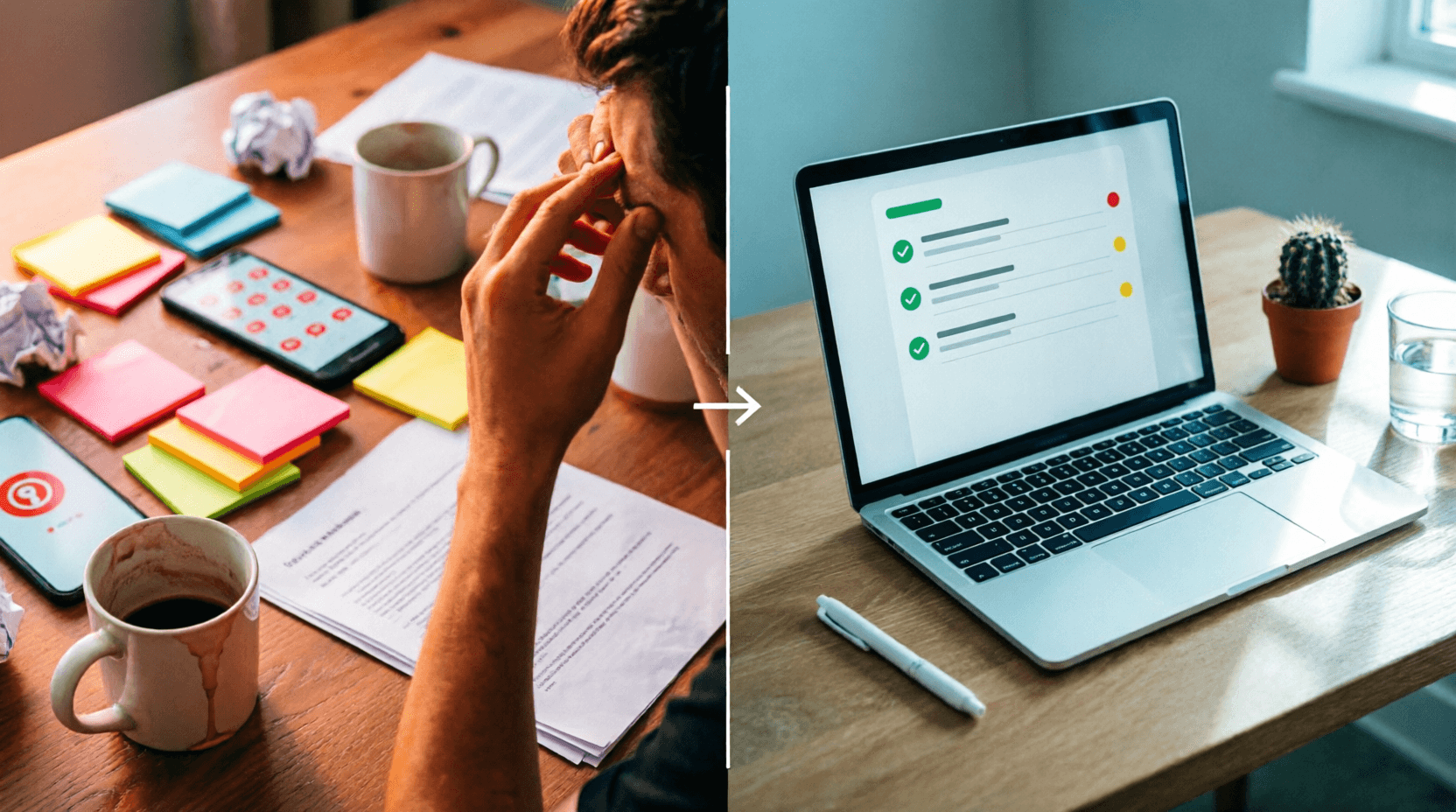
Ever had that sinking feeling at 11 PM when you suddenly remember the one thing you were supposed to do today? Or maybe you're like me—juggling five different apps, sticky notes on your monitor, and still missing deadlines.
Here's the truth: you don't need another complicated project management platform. Sometimes, you just need a simple place to dump your tasks and actually see them get done.
That's exactly what our free To-Do List Creator does. No fancy features you'll never use. No monthly subscription. Just a clean, straightforward way to organize what matters.
What Makes This To-Do List Different?
Look, I've tried them all. From complex tools like Todoist and Asana to basic phone notes
. The problem? Most are either too simple (no way to prioritize) or too complex (needs a tutorial just to add a task).
This tool hits the sweet spot.
It lives in your browser, saves automatically, and respects your privacy. Your tasks stay on your device—nothing gets sent to any server. Plus, it works even if you close the tab or restart your browser. Come back tomorrow, and your list is exactly where you left it.
How to Use It (Takes 30 Seconds to Learn)
Getting started is ridiculously simple:
Step 1: Add Your First Task
Type what you need to do in the box. Got a big presentation Monday? Type "Prepare Q2 presentation slides."
Step 2: Set Priority (Optional)
Use the dropdown to mark tasks as High, Medium, or Low priority. High-priority items get a red dot—hard to miss.
Step 3: Hit Add
That's it. Task added.
Step 4: Check Off as You Go
Finished something? Click the checkbox. Watch that satisfying strikethrough appear.
Step 5: Export or Share
Need to email your list to your boss? Click "Copy as Text" and paste it anywhere. Want a backup? Download as a .txt file.
Features That Actually Matter
1. Automatic Saving (No More Lost Lists)
Every change saves instantly to your browser. Accidentally close the tab? Power outage? Your tasks are safe.
2. Priority Levels
Not all tasks are created equal. That dentist appointment? Low priority. Client deadline tomorrow? High priority. The color coding helps you focus on what's urgent.
3. Smart Filters
Switch between "All," "Active," and "Completed" views. Feeling productive? Check the Completed tab for that dopamine hit.
4. Export Options
- Copy as Text: Perfect for pasting into emails, Slack, or WhatsApp
- Save as .txt: Download your list as a file
- Both options maintain formatting, so your priorities show up clearly
5. Privacy-First Design
Unlike apps that sync to the cloud (and mine your data), everything stays on your device. Nothing is transmitted anywhere.
6. Zero Signup Required
No email. No password. No "forgot password" emails clogging your inbox. Just open and use.
Real People, Real Use Cases
Let me share how different people actually use this:
Students
Priya, a final-year engineering student in Bangalore, uses it daily:
"I tried using my phone's reminder app, but I'd forget to check it. Now I keep this tab open while studying. Added 'Submit project report by 5 PM' with high priority, and it's right there staring at me."
What she adds:
- Assignment deadlines
- Exam preparation topics
- Online class links
- Group meeting reminders
Working Professionals
Rahul, a marketing manager in Mumbai:
"I have 15 browser tabs open at any time. This to-do list sits in one tab, and I glance at it between tasks. The 'Copy as Text' feature is gold—I paste my daily tasks into our team Slack every morning."
His typical list:
- Client call at 3 PM (High)
- Review campaign analytics
- Send weekly report to director
- Book conference room for Friday
Freelancers & Entrepreneurs
Meera runs a small design studio:
"I manage 5-6 clients simultaneously. Earlier, I used WhatsApp's 'starred messages' to track tasks—disaster! Now each client gets their own list. I screenshot and send progress updates directly from here."
Home & Personal Tasks
Sometimes it's not about work:
- Grocery shopping list
- Wedding planning checklist
- Home renovation tasks
- Birthday gift ideas
Why This Beats Other Options
Vs. Phone Notes App
Notes apps are great for random thoughts, terrible for tasks. No checkboxes, no priority system, no way to mark things complete. Plus, you can't filter or export easily.
Vs. Complex Tools Like Monday.com or ClickUp
These are fantastic for teams managing huge projects
medium.com
. But if you just need to remember "call mom Sunday" and "pay electricity bill," they're overkill. It's like using a sledgehammer to crack a nut.
Vs. Pen & Paper
I get it—writing feels good. But paper doesn't:
- Save automatically
- Let you reorder tasks
- Export to share
- Survive coffee spills
Vs. Google Tasks
Google Tasks is solid if you're deep in the Google ecosystem
. But this tool is even simpler—no Google account needed, no integration overhead. Just pure task management.
Pro Tips to Get the Most Out of It
After testing this with dozens of users, here are the hacks that work:
1. The "Big 3" Rule
Each morning, add only THREE high-priority tasks. Not 15. Three. These are your non-negotiables. Everything else is bonus.
2. Use Clear, Action-Oriented Language
❌ Bad: "Project"
✅ Good: "Draft project proposal - 500 words"
❌ Bad: "Email"
✅ Good: "Send invoice to ABC Corp - Rs. 45,000"
Specificity creates action.
3. Review Before Closing
End your day by checking off completed tasks and moving unfinished ones to tomorrow's list. Takes 2 minutes, saves hours of confusion.
4. Batch Similar Tasks
Group related items:
- "Reply to client emails" (one task, multiple emails)
- "Make phone calls" (list all calls under one task)
Prevents context-switching fatigue.
5. Export Weekly for Accountability
Every Friday, hit "Copy as Text" and email yourself the week's completed tasks. After a month, you'll have proof of your productivity—great for performance reviews or just feeling accomplished.
6. Keep Multiple Tabs for Different Areas
Open separate browser windows for:
- Work tasks
- Personal tasks
- Shopping lists
Each maintains its own list independently.
Frequently Asked Questions
Will my tasks disappear if I close the browser?
Nope. Your tasks save automatically to your browser's storage. Close the tab, shut down your laptop, restart your computer—come back anytime, and your list is intact. The only way they're gone is if you clear your browser data or manually delete them.
Can I access my tasks from my phone?
Yes, but with a caveat. Since tasks save to your browser, they're device-specific. If you open the tool on your phone's browser, you'll see the same list (as long as you're using the same browser). However, unlike cloud-synced apps, tasks won't automatically sync across devices.
Is there a limit to how many tasks I can add?
Practically speaking, no. You could add thousands of tasks. But honestly, if you have more than 20 active tasks, you might want to prioritize better. Quality over quantity!
What happens if I switch browsers?
Tasks are stored per browser. If you create a list in Chrome, it won't appear in Firefox or Safari. Each browser has its own separate storage. If you need cross-browser access, use the "Copy as Text" or "Save as .txt" feature to backup and transfer.
Can multiple people collaborate on the same list?
Not directly, since it's a local tool. But here's a workaround: one person creates the list, clicks "Copy as Text," and shares it via WhatsApp, email, or Slack. Team members can paste it into their own instances. Not real-time collaboration, but works for sharing daily task lists.
Is this tool really free?
Completely free. No hidden charges, no premium features locked behind a paywall, no ads. We built it because we needed it ourselves.
Ready to Get Organized?
Here's the thing: the best productivity tool isn't the one with the most features. It's the one you'll actually use consistently.
This To-Do List Creator strips away everything unnecessary and gives you exactly what you need:
- A place to capture tasks
- A way to prioritize them
- The satisfaction of checking them off
No signup. No learning curve. No excuses.
Try it now—add your first task and see how good it feels to finally have everything in one place. Your future self (especially the one at 11 PM) will thank you.
💬 Comments (0)
No comments yet. Be the first to share your thoughts!
Leave a Comment