
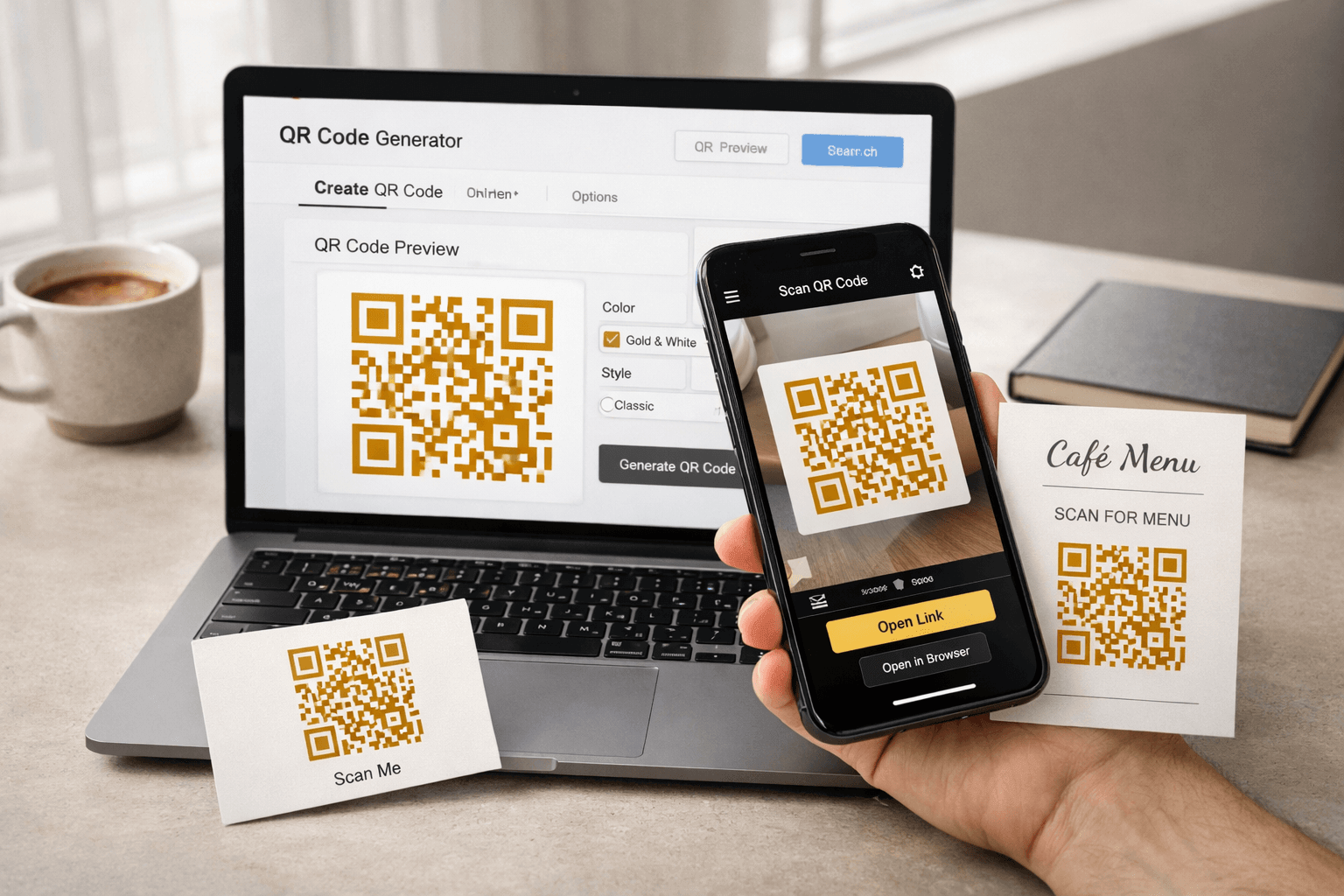
You’ve been there. You’re at a networking event, trying to share your portfolio with someone who just asked for it. Or maybe you’re hosting guests and they’re hunting for the Wi-Fi password. Pulling out your phone, opening notes, typing it out letter by letter, hoping you don’t miss a slash or a number—it’s unnecessarily tedious. What if you could just point your camera at a square on a screen or a card and be done with it? That’s exactly what a well-built QR code generator does, and the one we’re looking at today cuts straight to the point.
What This Tool Actually Does
At its core, this is a no-fluff QR code generator designed for people who value speed over sign-up forms. Instead of pushing you through email verification, hidden paywalls, or cluttered dashboards, it hands you a clean workspace. You pick the type of information you want to share, adjust how it looks, and download a ready-to-use image. Whether you’re linking to a website, saving contact details, or sharing network credentials, it handles the encoding in the background while you focus on what matters.
How It Works (Step-by-Step)
Getting your QR code ready takes less time than brewing a cup of tea. Here’s the exact flow based on the interface:
1. Choose Your Data Type
Start by clicking the QR Code Type that matches your goal. You’ll see clean buttons for URL, Text, Email, Phone, SMS, Wi-Fi, and vCard. The interface instantly adapts to show the right input fields.
2. Enter Your Information
If you picked URL, a text box appears for your website link. Paste it in. For Wi-Fi, it’ll ask for the network name and password. For vCard, it’ll prompt for name, number, and email. No guesswork involved.
3. Tweak the Technical Settings
Set the size in pixels (300 is a reliable default for most screens and standard prints). Choose your error correction level—High (H) is usually the smart pick because it keeps the code scannable even if it gets slightly crumpled, faded, or partially covered.
4. Adjust Colors to Match Your Style
Use the QR Color and Background pickers to match your brand palette or event theme. The preview updates instantly so you can see exactly how the contrast looks before committing.
5. Preview & Download
Watch the code render in real-time on the right side. Once you’re happy with the layout and colors, hit the Download PNG button. You’ll get a crisp, transparent-background-ready image ready for digital or print use.
Key Features & Why They Matter
What makes this generator stand out isn’t just that it works—it’s how thoughtfully it’s built for real-world use:
- All-in-one data types: No need to jump between different tools for contacts, Wi-Fi, or text. Everything lives in one place.
- Live preview: You see exactly how the code will look before downloading, which saves you from awkward formatting surprises.
- Transparent error correction: Choosing “High” gives your code a safety net for physical prints, flyers, or stickers that might face wear and tear.
- Full color control: Many free generators force black-and-white. Here, you can match your website theme or poster design without breaking scannability.
- Zero friction workflow: No account creation, no watermarks, no waiting queues. Just generate, preview, and download.
Real-Life Use Cases
Let’s talk about where this actually saves your day:
- Freelancers & Job Seekers: Drop your portfolio or resume link into the URL field, generate a code, and add it to your business card or email signature. Scanning beats manual typing every time.
- Café & Co-working Owners: Print a Wi-Fi QR code and place it near the counter or reception. Guests connect instantly without asking staff for passwords.
- Event Planners & Educators: Share session slides, feedback forms, or class materials via URL or SMS codes on presentation screens. No more “can you email that to me?” interruptions.
- Personal Organization: Store emergency contacts, medical info, or frequently used links as vCard or text QR codes in your phone gallery for quick offline access.
Why This Tool Beats the Clutter
You’ve probably tried a handful of QR generators online. Many look polished until you hit a paywall for high-resolution downloads, or they slap a distracting logo on your code. This one skips the gimmicks. The interface is deliberately minimal because it respects your time. The color pickers actually work without breaking the scan ratio, the error correction is clearly labeled, and the PNG export stays crisp. It’s built for utility, not upsells.
Tips to Use It Effectively
A few hard-earned tricks to make sure your codes always scan on the first try:
- Prioritize contrast: Dark modules on a light background work best. Avoid pastel-on-pastel combinations that confuse camera sensors.
- Test before committing: Always scan your downloaded code with your phone’s default camera app before sending it to print or sharing it publicly.
- Match size to medium: 300px is great for digital use and standard documents. If you’re printing on large banners or packaging, consider generating at a higher pixel value if the tool allows, or scale it up in a design editor.
- Lean on High error correction for physical items: Flyers, stickers, and product labels take a beating. “High (H)” recovers more data if part of the code gets scratched or folded.
- Keep the center clear: Unless you’re using a specialized designer tool, avoid placing logos or heavy graphics directly over the code. Clean edges scan faster.
Frequently Asked Questions
Q: Will changing the QR code color make it unscannable?
A: Not if you maintain strong contrast. Dark foreground modules on a light background scan perfectly. The tool lets you adjust both, so just avoid matching the two colors too closely.
Q: Do I need to create an account to download my code?
A: Nope. You generate, preview, and download the PNG directly. No sign-ups, no email verification, no hidden steps.
Q: What’s the difference between the error correction levels?
A: Error correction determines how much of the code can be damaged or obscured and still work. “High (H)” recovers up to 30% of data, making it ideal for physical prints or codes that might get folded, scratched, or partially covered.
Q: Can I use these QR codes for commercial projects?
A: Yes. Since there’s no watermark and no usage restriction attached to the generated files, you’re free to use them for business cards, marketing materials, product packaging, or client deliverables.
Final Thoughts
Sharing information shouldn’t feel like a chore. Whether you’re handing out contact details at a meetup, setting up a guest network, or just trying to make your daily workflow a little smoother, a reliable QR code generator removes the friction. This one keeps things straightforward, fast, and completely free of unnecessary hoops. Give it a try the next time you need to share a link or save someone a few seconds of typing. You might be surprised how often you reach for it once it’s part of your routine.
💬 Comments (0)
No comments yet. Be the first to share your thoughts!
Leave a Comment