
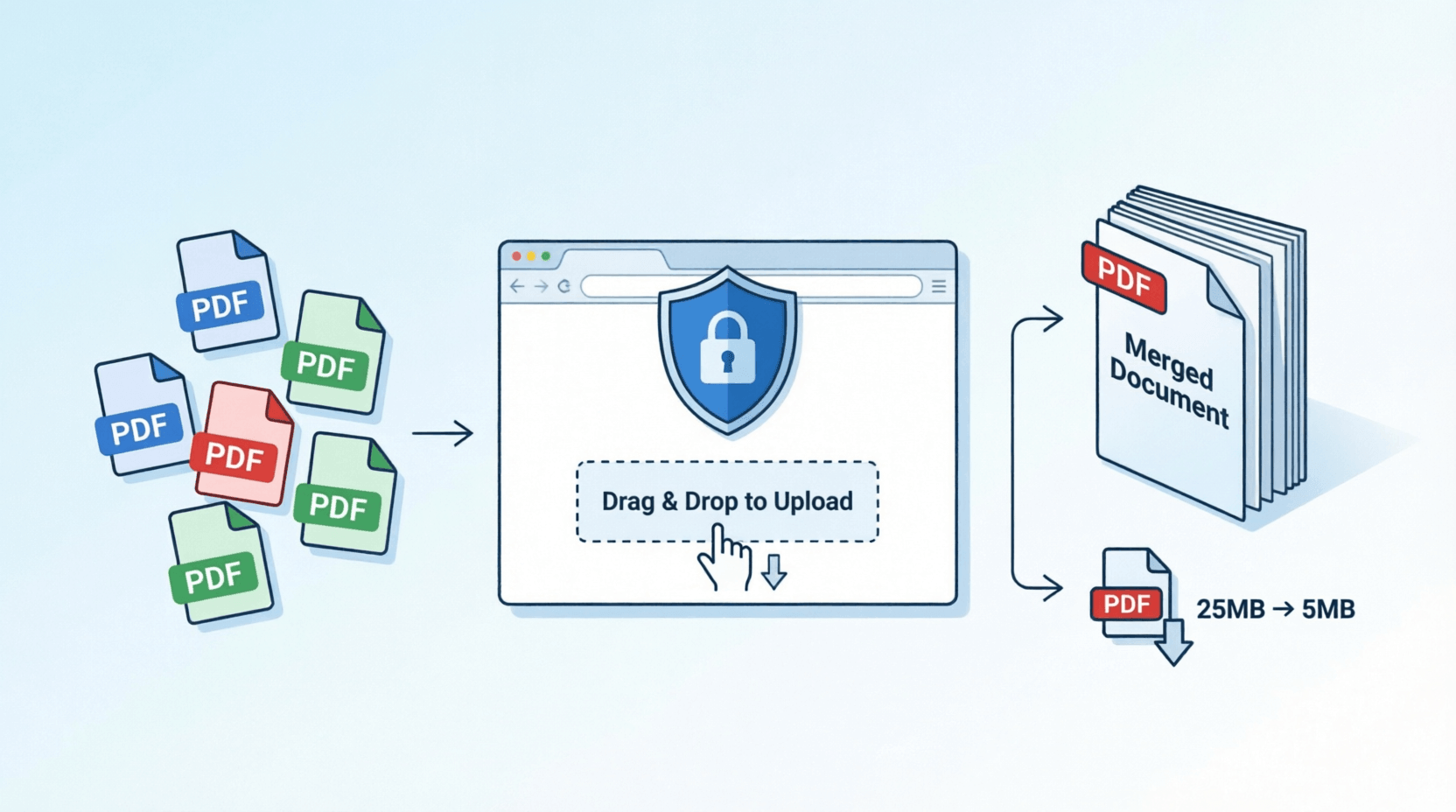
Picture this: You're rushing to submit your job application before the deadline. The problem? Your resume, cover letter, and certificates are scattered across five different PDF files. The job portal accepts only one file.
Panic mode, right?
Or maybe you've tried emailing an important document to your professor or client, only to get that annoying "file size exceeds limit" error. Again and again.
We've all been there. And that's exactly why we built two simple tools that solve these headaches in under a minute—without compromising your privacy.
What Makes These PDF Tools Different?
Here's the thing most people don't realize: When you use many online PDF tools, your files actually get uploaded to some server somewhere. That's fine for random documents, but what about bank statements, legal papers, or confidential reports?
Our tools work differently. Everything happens right in your browser. Your files never leave your computer. It's like having a PDF workshop installed on your machine, except it runs in Chrome, Firefox, or any modern browser.
Think of it this way: You're not sending your documents to a stranger's workshop. You're using tools that come to you.
Meet Your New PDF Sidekicks
1. Merge PDF: Stitch Files Together Like a Pro
Got multiple PDFs that need to become one? This tool lets you combine as many files as you want. No watermarks. No "upgrade to premium" popups. Just drag, drop, arrange, and done.
How it works:
- Step 1: Click the upload box or simply drag your PDFs onto it
- Step 2: Rearrange files by dragging them up or down (want your cover page first? Just move it to the top)
- Step 3: Hit "Merge & Download" and grab your combined PDF
The sweet spot? Keep your total file size under 100 MB for the smoothest experience. But honestly, there's no strict limit on how many files you can merge.
2. Compress PDF: Shrink Without Sinking Quality
That 25 MB PDF eating up your email quota? This tool can shrink it to a fraction of the size. Perfect for WhatsApp sharing, email attachments, or uploading to portals with strict size limits.
Here's the process:
- Step 1: Upload your PDF (up to 50 MB works best)
- Step 2: Choose your quality level (higher quality = larger file, lower quality = smaller file)
- Step 3: Download your newly compressed PDF
Quick heads-up: This compression works by converting each page into an image. So if you have a text-heavy PDF where you need to select or copy text, the compressed version will become image-only. It's perfect for scanned documents, forms, or image-rich PDFs, but not ideal if you need searchable text.
Why People Love These Tools (And Keep Coming Back)
Privacy That Actually Means Something
Your files stay on your device. Period. While other services upload your documents to their servers
Our tools process everything locally in your browser using JavaScript libraries like pdf-lib and PDF.js
No Registration Drama
Remember the last time you just wanted to quickly merge two files but had to create an account, verify your email, and jump through hoops? Yeah, we hate that too. No sign-ups here.
Works Everywhere
Windows, Mac, Linux, even your phone or tablet. If it has a browser, it works. No downloads, no installations, no "sorry, not compatible with your operating system."
It's Actually Free
Not "free for 3 files then pay up." Not "free with a giant watermark." Just free.
Real-Life Scenarios Where These Tools Save the Day
The Student's Dilemma: Priya from Mumbai has her assignment split into three files—introduction, main content, and references. Her professor wants one PDF. She merges them in 30 seconds while waiting for the college bus.
The Freelancer's Fix: Raj, a graphic designer in Bangalore, needs to send his portfolio to a client. The original is 45 MB—too big for email. He compresses it to 8 MB without noticeable quality loss and hits send.
The Job Seeker's Win: Sarah's applying for her dream job. She has separate PDFs for her resume, portfolio samples, and recommendation letters. She merges them into one polished application package and submits before the deadline.
The Small Business Owner's Relief: Amit runs a coaching center. He scans attendance sheets and test papers daily. By compressing them, he saves gigabytes of cloud storage every month.
How These Tools Beat the Competition
Most free PDF tools online fall into one of these traps:
- Upload your files to their servers (privacy risk)
- Limit you to 2-3 files unless you pay
- Slap watermarks on your documents
- Require account creation
- Slow processing because of server queues
Our approach? Client-side processing means faster speeds (no upload/download wait), complete privacy (files never leave your device), and zero costs (no server bills to pay)
The technology behind this uses modern browser capabilities to handle PDF manipulation locally
. It's the same approach trusted by privacy-conscious users worldwide
Pro Tips to Get the Best Results
For Merging PDFs:
- Name your files logically before uploading (01_Cover.pdf, 02_Resume.pdf, etc.)—it makes arranging easier
- Check file sizes beforehand. If you're merging ten 20 MB files, consider compressing individual files first
- Preview before downloading to ensure pages are in the right order
For Compressing PDFs:
- Test different quality levels—start with medium quality and adjust based on your needs
- Keep the original until you confirm the compressed version works for your purpose
- Use compression wisely—if you need to edit the PDF later or extract text, keep an uncompressed copy
- Batch smartly—if you have multiple large PDFs, compress them individually rather than merging first
The Golden Rule: Always download and check your file before sending it to someone important. A quick 10-second preview can save you from embarrassing mistakes.
Frequently Asked Questions
Q: Is it really safe? My files contain sensitive information.
Absolutely. That's the whole point. Unlike services that upload your files to servers
, our tools run entirely in your browser. Your PDFs never travel over the internet to some company's server. They stay on your computer the entire time. It's the same principle as using Microsoft Word offline versus Google Docs online.
Q: Can I merge 50 files at once?
Technically, yes—there's no hard limit. But practically, if you're merging dozens of files or files totaling over 100 MB, it might slow down your browser since all the processing happens on your machine. For best results, keep total size under 100 MB.
Q: Why does compression make text unselectable?
The compression tool works by converting each PDF page into an image (JPEG), then rebuilding the PDF from those images
. This is great for reducing file size, especially for scanned documents, but it means the text becomes part of the image. If you need to preserve selectable text, look for tools that use different compression methods, though they typically achieve less size reduction.
Q: Do these tools work on mobile phones?
Yes! Whether you're on an iPhone, Android, iPad, or tablet, just open your browser and use them like any website. The interface adapts to your screen size.
Q: What happens if my browser crashes while processing?
Since everything runs locally, if your browser crashes mid-process, you'll just need to start over. Your original files remain untouched. We recommend not closing the browser tab while processing is happening. For very large files, give it a minute or two.
Q: Can I use these tools offline?
Currently, you need an internet connection to load the tools initially. However, once loaded, the processing happens offline. We're exploring options to make these fully available as progressive web apps (PWA) for complete offline functionality.
Ready to Tame Your PDF Chaos?
Look, we get it. There are dozens of PDF tools out there. But here's what sets these apart: respect for your time and privacy.
No gimmicks. No hidden charges. No uploading your confidential documents to who-knows-where.
Next time you need to merge those assignment files or shrink that bloated PDF, give these tools a shot. They're here whenever you need them.
Try the Merge PDF tool when you're juggling multiple documents, or fire up the Compress PDF tool when email size limits are giving you grief.
Your future self (and your inbox) will thank you.
💬 Comments (0)
No comments yet. Be the first to share your thoughts!
Leave a Comment